
Thinking Out Loud
Everything Leaves a Mark
I was driving home the other night, half-listening to the news, and a thought arrived uninvited the way…
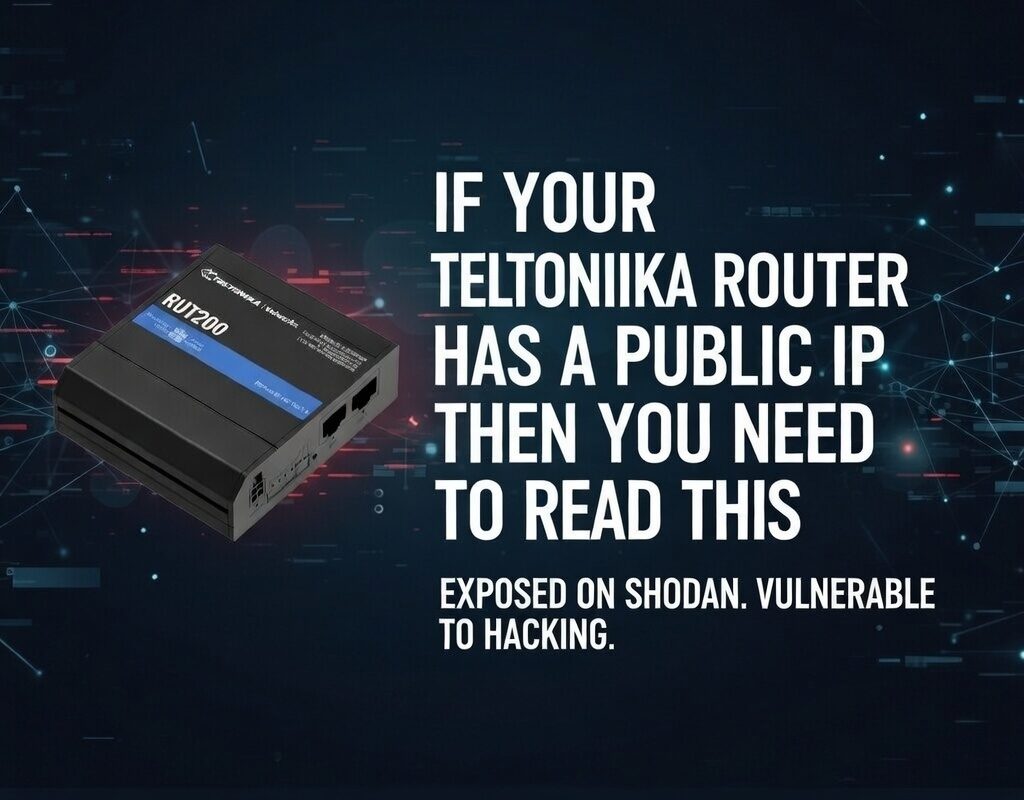
Hundreds of thousands of Teltonika routers are deployed across the UK with a public IP SIM inserted and the default configuration left largely untouched. Many of them are protecting battery management systems, energy meters, building automation controllers, and industrial PLCs. Some of them are on Shodan right now. This guide covers both routes to a secure deployment – switching SIM type, or locking down what you already have.
When an IoT SIM is described as having a “public IP”, it means the SIM is assigned an IP address that is routable on the public internet – either static (always the same) or dynamic (changes on each connection or periodically). Either way, any device connected to that SIM, and any device on a network behind a router using that SIM, is potentially reachable from anywhere in the world.
This is often sold as a feature. And for certain use cases – where you need to initiate inbound connections to a device, or where you are running your own VPN server infrastructure and can control access properly – it can be. The problem arises when a public IP SIM is used as a convenience shortcut in place of a properly designed remote access architecture. And in the world of cellular IoT, that happens constantly.
The typical failure scenario looks like this: an installer fits a Teltonika RUTX11 or RUT241 to a battery energy storage system. They set up port forwarding so the monitoring team can access the BMS web interface on port 80 and the Modbus TCP gateway on port 502. They change the router’s admin password. They put the public IP in a spreadsheet. They drive away. Nobody ever thinks about it again – until something goes wrong.
Some installers assume that a dynamic public IP is “safe enough” because the IP changes. In practice, automated scanning tools like Shodan, Censys, and ZMap scan the entire IPv4 address space continuously. Your router will be fingerprinted within hours of getting a new IP. Dynamic simply means the fingerprint moves – it does not mean attackers cannot find it.
Shodan is a publicly accessible search engine that indexes internet-connected devices by scanning for open ports and grabbing service banners. It is a legitimate security research tool, and it is also freely used by attackers to find targets. If your Teltonika router has a public IP and has any ports open – including the default WebUI port 80/443, SSH on port 22, or any port-forwarded service – there is a high probability it is indexed on Shodan.
A typical Shodan result for an exposed Teltonika router will show the device model, the firmware version banner, and which ports are open. From a model and firmware version, an attacker knows exactly which CVEs to try. From an open port 502, they know there is a Modbus device accessible. From port 102, it is S7comm (Siemens PLC). From port 44818, EtherNet/IP. These are industrial protocols with minimal or no authentication built in – they were never designed to face the public internet.
Once a device is found, automated attack tools run through several phases: credential stuffing using default and common passwords, protocol-specific exploitation, and in the case of industrial protocols, direct command injection to the downstream device. The Teltonika router itself may survive this unscathed – but the BMS, PLC, or controller behind it may not.
Go to shodan.io and search for your public IP address. If you find your device listed there with open ports visible, treat this as an urgent remediation item, not a future consideration. Free Shodan accounts can run basic IP lookups.
Battery management systems, building energy management systems, and industrial controllers often have a self-protection mechanism built in: after a configurable number of failed authentication attempts, they lock the account, disable the communication port, or in some cases halt the process entirely and require a manual reset. This is sensible security design for a device that expects to sit inside a protected network. It is catastrophic when that device is exposed to the internet and brute-force attempts are arriving at thousands of attempts per minute.
The consequences are not theoretical. An energy storage system that halts due to a brute-force lockout will stop charging and discharging at the grid. If it was providing frequency response services, it drops off the grid at exactly the moment it was contracted to stabilise it. If it was providing peak shaving to an industrial facility, the facility’s demand charges spike. If it was keeping a hospital’s backup power topped up, someone is now worried about the state of those batteries. The financial and safety implications can be severe – and the root cause is a port forwarding rule that nobody thought to restrict.
If you are port-forwarding Modbus TCP (port 502) through a Teltonika router to a BMS or energy meter, any attacker who finds that open port can read and write registers with zero authentication required. This is not a Teltonika issue – it is a fundamental characteristic of the Modbus protocol. The only safe place for Modbus TCP is inside a protected network or VPN tunnel.
The cleanest architectural solution is to remove the problem at the network layer. A private IP SIM is allocated an IP address from a private range (typically 10.x.x.x or 172.16.x.x) that is not routable on the public internet. No scanner, no attacker, and no automated tool can reach your device directly – because there is no public path to it.
Access to devices on a private IP SIM is normally provided through a VPN concentrator operated by the SIM provider, which creates a secure tunnel between your management network and the private IP range used by the SIMs. Your monitoring station connects to the VPN, gets access to the 10.x.x.x range, and can reach the device. Nobody else can.
Private IP SIMs are typically available from specialist IoT MVNO providers and some of the main network operators through their IoT divisions. The pricing model varies significantly and it is worth understanding what you are actually paying for before committing.
The SIM itself may cost no more than a standard data SIM. The cost that catches people out is the VPN infrastructure. Some providers charge a one-off setup fee per VPN connection – and for a single SIM deployment, this can be disproportionate. Fees of £50 or more for a single-SIM OpenVPN setup are not uncommon from some IoT MVNO providers. If you are deploying a fleet of 100 SIMs and paying one setup fee, that is sensible. If you are connecting one BMS controller in a building, it may price the solution out of reach.
If you have, or expect to have, more than five SIMs on a single customer site or across a portfolio, the economics of private IP often become favourable quickly. Get a quote that includes the VPN setup as a one-off fleet cost rather than a per-SIM cost, and compare that against the engineering time you will spend hardening individual Teltonika routers.
Private IP SIM is the cleanest choice when: the SIM provider’s pricing is reasonable for your deployment scale; you need to satisfy a compliance requirement that mandates network-layer isolation; you are connecting devices with no built-in authentication (Modbus TCP, raw serial-over-IP); or you are deploying in a sector where a security audit is likely. It is also worth considering when the end customer has a security-conscious IT or OT team who will ask how the device is protected – “it’s behind a private IP SIM with a managed VPN” is a cleaner answer than a lengthy explanation of firewall rules.
If you are keeping the public IP SIM – whether for cost reasons, because you are mid-contract, or because you need the flexibility of direct internet access for outbound connections – you can achieve a strong security posture entirely within the Teltonika router itself. This is not a second-best option. A properly hardened Teltonika with a public IP SIM, running a VPN server with all other inbound traffic blocked, is a secure architecture. The key word is properly.
The following sections walk through each layer of the hardening process in order of priority. Apply them in sequence. Do not skip to the VPN section without completing the firewall steps first.
The most important single change you can make to a Teltonika router on a public IP SIM is to set the default inbound firewall policy to DROP, and then selectively allow only the specific traffic you intend to permit. This is the “default deny” principle, and it is the foundation of every properly designed network security policy.
Teltonika’s RutOS (the operating system on all RUT/RUTX/TRB series devices) uses an iptables-based firewall with a web interface under Network > Firewall. By default, the WAN zone (your SIM interface) is set to reject inbound connections – but this default can be less comprehensive than it appears, particularly when port forwarding rules are in place. You need to verify and tighten it explicitly.
Check the WAN zone input and forward policies. Set input to DROP rather than REJECT. DROP silently discards the packet; REJECT sends an ICMP error back, confirming the device exists to the scanner.
Go to System > Administration > Access Control. Ensure HTTP and HTTPS access from the WAN interface is disabled. The router’s management interface should only be reachable from the LAN side or through an authenticated VPN tunnel.
In the same Access Control section, ensure SSH is not accessible from the WAN interface. If you need SSH access remotely, tunnel it through your VPN. SSH on a public IP, even with key-based authentication, is a target for exploit attempts against the SSH daemon itself.
Go to Network > Firewall > Port Forwards. Delete any rule you cannot explain or justify. Every port forwarding rule is a hole in your perimeter. The only rules that should exist are the VPN server ports and any explicitly required, hardened exceptions.
Under Network > Firewall > Traffic Rules, add a rule to drop ICMP echo requests from the WAN zone. This removes a trivial confirmation method for scanners, though port scanning will still find open ports.
Before applying firewall rules that block all WAN inbound access, confirm you have LAN-side access to the router, or that you have an RMS connection established that you can use to recover access. Applying a DROP-all-WAN rule without a recovery path means a site visit to recover the device.
With the firewall locked down, the next step is to establish your controlled access channel. OpenVPN is the most widely supported VPN protocol, compatible with every major operating system and a large number of monitoring platforms. Teltonika’s RutOS has a mature OpenVPN server implementation accessible through the WebUI.
In this configuration the Teltonika router acts as the VPN server. Remote users (engineers, monitoring stations) connect as VPN clients. Once connected, they can reach the LAN-side devices through the VPN tunnel as if they were physically on the LAN. All access is authenticated, encrypted, and logged.
Click Add New Instance and select Server mode. Give it a descriptive name such as remote-access.
Use the built-in certificate generator to create a CA certificate, server certificate, and server key. Download these immediately and store them securely offline.
Set a VPN subnet that does not overlap with your LAN. If your LAN is 192.168.1.0/24, use something like 10.10.10.0/24 for the VPN. Set the protocol to UDP. Default port 1194 is fine, but a non-standard port provides minor additional obscurity.
In the advanced settings, push your LAN subnet to connected clients: push “route 192.168.1.0 255.255.255.0”. Without this, VPN clients can reach the tunnel endpoint but not the devices behind it.
For each engineer or monitoring system, generate a unique client certificate and key pair. Export a .ovpn configuration file for each. Individual certificates mean you can revoke access for one person without affecting others.
Under Network > Firewall > Traffic Rules, add a rule to accept UDP traffic from WAN to the router on your chosen OpenVPN port. This should be the only inbound rule from WAN. Everything else remains dropped.
Enable the tls-auth directive in your OpenVPN configuration with a pre-shared static key. Packets without the correct HMAC header are dropped before the TLS handshake begins – protecting the VPN daemon from unauthenticated connection attempts and denial-of-service attacks.
WireGuard is a modern VPN protocol that is significantly simpler in design than OpenVPN, uses state-of-the-art cryptography by default, and has considerably less code surface area – which translates to fewer potential vulnerabilities. It is also noticeably faster in terms of handshake time and throughput, which matters for latency-sensitive applications like real-time BMS monitoring dashboards.
Teltonika added WireGuard support to RutOS from firmware version 7.x onwards, and it is now available across the RUTX and RUT series. WireGuard uses a public/private key pair for each peer – no certificate authorities, no CRLs, just keys.
Create a new WireGuard interface. The router generates its key pair automatically. Note the public key – you will need it for client configurations.
Give the WireGuard interface an IP address within your chosen VPN subnet, for example 10.20.0.1/24.
Generate a WireGuard key pair on each client device (Windows/Mac/Linux/iOS/Android WireGuard app). Add each client’s public key as a peer on the Teltonika, assigning a specific allowed IP within the VPN subnet (e.g. 10.20.0.2/32 for engineer 1). This gives you per-user access control without certificate infrastructure.
Each client needs: the server’s public key, the server’s public IP and WireGuard port, the client’s own private key, the client’s assigned VPN IP, and the allowed IPs to route through the tunnel. Teltonika’s WebUI can generate a QR code for mobile clients.
WireGuard does not respond to connection attempts from peers whose public keys are not in its allowed list. Any attempt to initiate a connection without the correct key material receives no response – significantly better behaviour than OpenVPN under attack conditions.
Some monitoring scenarios require a persistent, always-on connection rather than an on-demand VPN tunnel. A NOC that needs to poll your BMS every 60 seconds cannot rely on an engineer manually connecting a VPN client before each poll cycle. In these cases, IP whitelisting – allowing inbound connections only from specific known IP addresses – is a practical solution combined with proper firewall rules.
IP addresses can be spoofed at the network layer. IP whitelisting provides a useful additional layer of defence but should always be combined with application-layer authentication on the destination service. Never allow unrestricted access to an unauthenticated protocol like Modbus TCP from a whitelisted IP.
Under Network > Firewall > Traffic Rules, add a rule that allows inbound traffic from a specific source IP to a specific destination port. For example, to allow a monitoring company to poll a Modbus gateway on port 502:
Any competent monitoring NOC should be able to provide a static IP or a small CIDR range for their outbound scanning traffic. If they cannot, that is worth factoring into your assessment of their operational maturity. Allowing inbound access from a dynamic IP defeats the purpose of whitelisting entirely.
For sites where multiple parties need access, create a separate named firewall rule for each party. This gives you the ability to revoke a specific party’s access by disabling a single clearly-named rule without affecting anyone else. Keep a register reviewed at least annually and whenever a contractor relationship ends.
The strongest recommendation in this guide is to eliminate port forwarding to LAN devices entirely and replace it with VPN access. However, legacy systems, third-party monitoring contracts, or client requirements sometimes make this unavoidable in the short term. If that is your situation, apply every one of the following controls.
In RutOS, every port forwarding rule can have a source IP address condition applied. Always specify the source IP or range. Any restriction is better than none.
Port scanners sweep well-known port numbers first. Forwarding external port 58291 to internal port 80 means you are not in the first wave of automated scan hits. This is security through obscurity and not a substitute for real controls – but combined with source IP restriction, it reduces noise significantly.
In Network > Firewall > Traffic Rules, add rate limiting rules that drop connections from a source IP exceeding a defined rate. A monitoring poll should not require more than a handful of connection attempts per minute.
There is no safe way to expose these protocols on a public port. If you have an existing deployment doing this, escalate it as a critical remediation item immediately and route these protocols through a VPN tunnel only.
Port forwarding rules accumulate silently. Create a brief register for every active rule: what it does, why it exists, who requested it, and when it was last reviewed. Schedule a review at least every six months.
Teltonika’s RutOS includes several built-in security features worth enabling as part of a hardened deployment. These are not a substitute for the firewall and VPN configuration described above, but they provide additional layers of detection and active protection.
Under Network > Firewall > Attack Prevention, RutOS provides configurable protection against SYN flood attacks and port scan attempts. SYN flood protection limits the rate at which new TCP connection requests are accepted. Port scan detection identifies and blocks source IPs exhibiting scanning behaviour. Enable both as a baseline – the default thresholds are a reasonable starting point.
Under System > Administration > Access Control, enable the built-in brute force protection. This uses fail2ban-style logic to block IP addresses that fail SSH authentication a defined number of times within a time window. Three failed attempts within five minutes is a sensible starting point.
Change the default admin password immediately on every device before it goes onto a network. Use a unique password per device – not a shared password across your fleet. Store credentials in a password manager, not a spreadsheet. For SSH, disable password authentication and use key-based authentication only.
Automated tools actively attempt default Teltonika credentials against every device they find. If a device has left the premises with the default password, assume it has been tried. Change it before deployment, not after.
Teltonika releases firmware updates regularly, including security patches for vulnerabilities in RutOS itself and in underlying components such as OpenSSL and the Linux kernel. Enable automatic update notifications or use Teltonika RMS to manage firmware across your fleet. Always verify your security configuration after a firmware update – firewall rules and VPN configurations should be checked, as major version upgrades can reset some settings to defaults.
Teltonika Remote Management System (RMS) is a cloud-based device management platform that is fundamentally different in architecture from direct remote access. Rather than requiring an inbound connection to the router, RMS uses an outbound, persistent connection from the router to Teltonika’s RMS servers. The router initiates the connection. This is a critical architectural difference with significant security implications – it means RMS works regardless of whether all inbound traffic to the router is blocked.
The outbound connection from the router on port 15009 (or 443 as a fallback) to the RMS servers is all that is needed. You do not need to open any inbound ports to use RMS for device monitoring and management. RMS provides remote access to the router’s WebUI, SSH access, and VPN-based access to LAN devices – all proxied through the RMS cloud infrastructure, all authenticated through your RMS account credentials.
RMS operates on a credit consumption model. Basic device monitoring (status, signal quality, offline alerts) consumes very few credits and is cost-effective even for large fleets. Extended VPN sessions and large data transfers consume more. Budget for RMS credits as an operational cost when specifying deployments that will use RMS for ongoing management.
Yes – and this is one of the most important points in this guide for anyone managing a mixed fleet of SIM types.
RMS VPN creates an on-demand peer-to-peer VPN tunnel, brokered through the RMS cloud infrastructure, between your management device and the Teltonika router. Because the connection is brokered rather than direct, the router’s WAN IP address is irrelevant. The router has already established its outbound connection to the RMS servers. When you initiate an RMS VPN session from the portal, the RMS infrastructure instructs the router to establish a VPN tunnel endpoint, and connects your management device to that endpoint through the cloud.
| SIM Type | RMS Monitoring | RMS VPN Access | Direct OpenVPN/WireGuard |
|---|---|---|---|
| Public IP – Static | Works | Works | Works |
| Public IP – Dynamic | Works | Works | Unreliable – IP changes |
| Private IP – Static | Works | Works | Works via provider VPN |
| Private IP – Dynamic | Works | Works | Not directly reachable |
RMS VPN is well-suited to the on-demand access pattern used by field engineers and technical support teams. An engineer opens the RMS portal, locates the device, initiates a VPN session, and is connected to the router’s LAN within seconds – regardless of the router’s current WAN IP or SIM type. When the session is closed, the tunnel tears down cleanly. This sidesteps the dynamic IP problem entirely for human-initiated access.
For monitoring stations that need continuous, always-on access to poll devices at regular intervals, RMS VPN’s on-demand model is less suitable – it is designed for human-initiated sessions, not persistent machine-to-machine tunnels. For persistent monitoring access, the options are:
Use RMS VPN for engineer access, technical support sessions, and configuration changes. Use a self-hosted VPN for persistent monitoring connections and machine-to-machine tunnels. For critical infrastructure, consider both – RMS as the management and engineer access channel, a self-hosted VPN as the monitoring channel.
If you are running a self-hosted VPN server on a Teltonika with a dynamic public IP SIM, DDNS is a practical workaround. RutOS has a built-in DDNS client under Services > Dynamic DNS supporting multiple providers including No-IP, DynDNS, and Cloudflare. The router automatically updates the DNS record when its WAN IP changes. The key limitation is the update delay – typically 60 to 300 seconds after a reconnection – during which connections will fail. Acceptable for engineer access; potentially problematic for high-frequency automated monitoring.
A hardened router that generates no alerts still leaves you flying blind about what is happening on the WAN interface. Configure the following as part of every deployment.
Under Services > Events Reporting, configure notifications for: WAN connection state changes; login attempts to the WebUI; SSH login attempts; firewall rule triggers on specific rules; and data usage threshold breaches. Unexpected data usage spikes are often the first visible indicator of a compromised or misconfigured device – if your device normally uses 50MB per day, set an alert at 200MB.
RutOS supports forwarding system logs to a remote syslog server under System > Administration > Troubleshoot > System Log. Route Teltonika logs to a SIEM or syslog collector if one is in use. This gives you a tamper-resistant record of events, since logs stored only on the router can be cleared if the router is compromised.
Within the RMS portal, configure offline alerts for every managed device. An unexpected device going offline during business hours is a security-relevant event as well as an operational one. RMS alert configuration is managed centrally in the portal rather than needing to be set on each device individually.
Use this checklist for every Teltonika deployment on a public IP SIM. It represents the minimum acceptable configuration for a device connected to operational equipment.
| Scenario | Recommended Approach |
|---|---|
| Single site, existing public IP SIM, cost-sensitive | Harden the Teltonika (Option 2). Set up WireGuard for engineer access, whitelist monitoring company, use RMS for management. |
| Fleet deployment, compliance requirement, critical infrastructure | Private IP SIM (Option 1). The cost per SIM is justified by the reduction in attack surface and audit simplicity. |
| Dynamic public IP SIM, engineer access needed | RMS VPN for engineer sessions, DDNS + OpenVPN/WireGuard for monitoring station. Do not rely on direct IP-based VPN with a dynamic SIM. |
| BMS or industrial controller with unauthenticated protocols (Modbus, S7) | Private IP SIM or VPN-only access is mandatory. Never port-forward unauthenticated industrial protocols through a public IP router. |
| Mixed fleet (some static, some dynamic SIMs) | RMS as the universal management layer. Add self-hosted VPN where static IP SIMs allow it. RMS VPN fills the gap for dynamic IP devices. |
The underlying principle across all scenarios is the same: the public internet should never have a direct, unauthenticated path to your operational devices or to the management interfaces of the routers protecting them. Whether you achieve that through network-layer isolation (private IP SIM) or through router-level controls (hardened Teltonika with VPN), the destination is the same. The path you take is a commercial and operational decision.
If you are currently running Teltonika routers on public IP SIMs with port forwarding to LAN devices and no VPN in place, this guide describes the remediation path. The work is achievable in a few hours per site for an engineer familiar with RutOS. The alternative is leaving operational systems exposed to a threat landscape that is automated, persistent, and increasingly targeted at exactly the kind of low-visibility industrial IoT devices that populate the energy, facilities, and utilities sectors.
The links below point to the official Teltonika Networks wiki. The RUT200 is used as the reference device throughout – it is one of the most widely deployed low-cost 4G routers in the UK and is frequently installed with a public static IP SIM as the path of least resistance for remote access. If you are using a different model, substitute the model prefix in the URL: RUTX11, RUT241, RUT906, RUTX50 and so on all follow the same pattern.
The RUT200 is a compact, single-SIM LTE Cat 4 router at the affordable end of the Teltonika range. That combination – low cost, easy to source, simple to configure – makes it the go-to choice for installers who need “something to put a SIM in” for a BMS controller or energy meter. It is also, for exactly those same reasons, frequently deployed with minimal security configuration. If you or your installer used a RUT200, this guide was written with you in mind.
Covers setting WAN zone policies, creating traffic rules for IP whitelisting, SYN flood protection, port scan protection, SSH brute force limits, and the Attack Prevention tab. Start here for all firewall hardening steps.
wiki.teltonika-networks.com/view/RUT200_FirewallA model-agnostic deep-dive into how RutOS traffic rules work, with practical configuration examples for blocking and allowing specific IPs and ports. Useful background reading before setting up IP whitelisting rules.
wiki.teltonika-networks.com/view/Firewall_traffic_rulesCovers disabling WebUI and SSH access from WAN, configuring system users with restricted permissions, SSH key-based authentication, and TLS certificate management. The Access Control section is the first place to go after changing the admin password.
wiki.teltonika-networks.com/view/RUT200_AdministrationThe main VPN configuration page for the RUT200. Covers OpenVPN server setup (TLS and static key modes), per-user TLS client certificates, WireGuard interface and peer configuration, and the built-in brute force blocking for OpenVPN. Primary reference for Sections 7 and 8 of this guide.
wiki.teltonika-networks.com/view/RUT200_VPNStep-by-step walkthrough of setting up an OpenVPN TLS server on one Teltonika router with a second router as the client. Useful if you are connecting two sites rather than individual engineer laptops. Covers TUN mode, UDP protocol, and TLS certificate generation.
wiki.teltonika-networks.com/view/OpenVPN_configuration_examplesHow to configure the built-in DDNS client to keep a hostname pointing at the router’s current WAN IP. Covers supported providers including Cloudflare, No-IP, and DynDNS. Essential if you are running a VPN server on a dynamic public IP SIM.
wiki.teltonika-networks.com/view/RUT200_Dynamic_DNSCovers static IP, dynamic IP with DDNS, and private IP scenarios and how each maps to different remote access approaches including VPN and RMS. Good starting point if you are deciding which approach fits your SIM type.
wiki.teltonika-networks.com/view/Remote_Device_AccessConfiguration guide for email and SMS notifications on defined events including WAN state changes, login attempts, and data usage thresholds. Note: Teltonika is replacing Events Reporting with Event Juggler in newer firmware – check which applies to your firmware version before configuring.
wiki.teltonika-networks.com/view/RUT200_Events_ReportingThe updated alerting system in current RutOS firmware, with more flexible trigger conditions and action types. If your RUT200 is on a recent firmware release, use this page rather than Events Reporting above.
wiki.teltonika-networks.com/view/RUT200_Event_JugglerThe main RMS introduction page. Covers the outbound connection architecture (why it works with any SIM type, including dynamic public IPs and private IPs), what you can monitor and manage, and how to get started.
wiki.teltonika-networks.com/view/RMSThe complete RMS user manual index, covering device management, monitoring templates, firmware updates, configuration push, alerting, and all RMS Connect features. Bookmark this rather than searching for individual features.
wiki.teltonika-networks.com/view/RMS_ManualDetailed guide to RMS Connect sessions – setting up tunnels to LAN-side devices (BMS controllers, energy meters), scanning devices, assigning connection names, and reviewing access history logs. The key page for understanding how RMS VPN replaces direct port forwarding for engineer access.
wiki.teltonika-networks.com/view/RMS_Remote_AccessAnswers to common questions about RMS connectivity, credit consumption, device registration, and troubleshooting. Worth checking before raising a support ticket if your device is not appearing in RMS or connections are failing.
wiki.teltonika-networks.com/view/RMS_FAQAll the RUT200 links above follow the pattern wiki.teltonika-networks.com/view/RUT200_[Topic]. To find the equivalent page for your device, replace RUT200 with your model number – for example RUTX11_Firewall, RUT241_VPN, RUT906_Administration, or RUTX50_Dynamic_DNS. The structure and menu paths are consistent across the RutOS range – only the model prefix in the URL changes.
I was driving home the other night, half-listening to the news, and a thought arrived uninvited the way…

I found Dan Peña the way most people do. Down a YouTube rabbit hole at midnight, looking for…

By Nick Appleby There is a specific kind of technical knowledge that sits in a very narrow corridor…